Guide · Updated 3 Oct 2026
How to attach a prop to a player in RedM: bones, offsets and rotation
To attach a prop to a player in RedM, you load the object's model, create the object, find a bone on the character, and call AttachEntityToEntity with an offset and a rotation. The code is ten lines. The hard part is the six numbers that put a cup in the hand instead of through the wrist, and the clean-up that stops props piling up after a restart. This guide covers both, with code taken from the open playback file we ship.
What attaching a prop actually does
- The prop is a separate object. A knife, a lantern or a badge is not part of the animation. It is its own entity, created next to the player.
- A bone is the anchor. The object is pinned to one named bone of the character's skeleton, such as the right hand.
- The offset and rotation place it. Three numbers move it from the bone (x, y, z), three turn it (pitch, roll, yaw).
- The animation does the rest. When the clip moves the hand, the bone moves, and the prop follows.
If you have not played an animation from a script before, start with RedM animations: dictionaries, scenarios and emotes. This guide picks up where its props section stops.
How to attach a prop to a player in RedM, step by step
Four steps: load the model with a timeout, create the object, find the bone, attach. This loader is from scene_player.lua, the playback runtime that comes with Poggy AnimTool ($29.99); that file is left readable so anyone may ship it.
local function loadModel(model, timeout)
    local hash = type(model) == "number" and model or GetHashKey(model)
    if IsModelValid and not IsModelValid(hash) then return false, hash end
    if HasModelLoaded(hash) then return true, hash end
    RequestModel(hash)
    local t = timeout or 5000
    while not HasModelLoaded(hash) and t > 0 do
        Wait(50); t = t - 50
    end
    return HasModelLoaded(hash), hash
end

local ped = PlayerPedId()
local ok, hash = loadModel("p_mugcoffee01x")
if ok then
    local c = GetEntityCoords(ped)
    local cup = CreateObject(hash, c.x, c.y, c.z, false, false, false, false, false)
    SetModelAsNoLongerNeeded(hash)
    local bone = GetEntityBoneIndexByName(ped, "PH_R_Hand")
    AttachEntityToEntity(cup, ped, bone,
        0.0, 0.0, 0.0,      -- offset x, y, z
        0.1, 0.1, 0.1,      -- rotation x, y, z
        false, false, false, true, 2, true, false, false)
end
The model name above is only an example; check any model name in game before you rely on it. The trailing arguments are copied as the runtime uses them. Change them only after testing, because published lists of what each one does do not agree.
Why the rotation is 0.1 and not 0
The runtime nudges any whole-number rotation by 0.1 before it attaches. Its own comment gives the reason: the engine resets an axis when it is given a whole number. If a prop snaps to a strange angle when you type a round value, this is the first thing to try.
Which bone to use
A character has dozens of bones. These are the ones that matter for props:
| Bone | Good for |
|---|---|
PH_R_Hand, PH_L_Hand | Anything held in the hand. These are the prop points, and the runtime's default bone. |
SKEL_R_Finger13 and the other finger bones | Small items held between the fingers. Poggy Crafting (Free) holds its knife on this one. |
SKEL_Head | Hats, masks, a pipe in the mouth. |
SKEL_Spine3 | Things worn on the chest or back: a badge, a bedroll. |
SKEL_Pelvis | A holster, a pouch, a lantern on the belt. |
The same object needs different numbers on each bone, because each bone has its own position and facing. Pick the bone first, then tune.
Finding the offset and rotation without a hundred restarts
The usual method is slow: edit six numbers, restart the resource, play the animation, look, repeat. A cup that looks right while the character stands can go through the cheek when they drink. Three ways to speed it up:
- A test command. Make a command that takes the six numbers as arguments and re-attaches the prop. You still type numbers, but you skip the restart.
- A free attach editor. The community has published free in-game editors for placing props on bones. Search the Cfx.re forum and GitHub for a RedM prop attach editor, and check it still works on current RedM.
- A timeline editor. Poggy AnimTool ($29.99) is a staff tool that does this and more, described below.
Whichever you use, check the prop through the whole clip, not only the first frame. A hand moves a lot in a drinking or smoking clip.
Props that move during a scene
Sometimes one fixed position is not enough. A character picks a cup up from the table, drinks, and puts it down. The cup must appear at the right moment, move as the grip changes, and vanish again. By hand that means timers, several attach calls and careful clean-up.
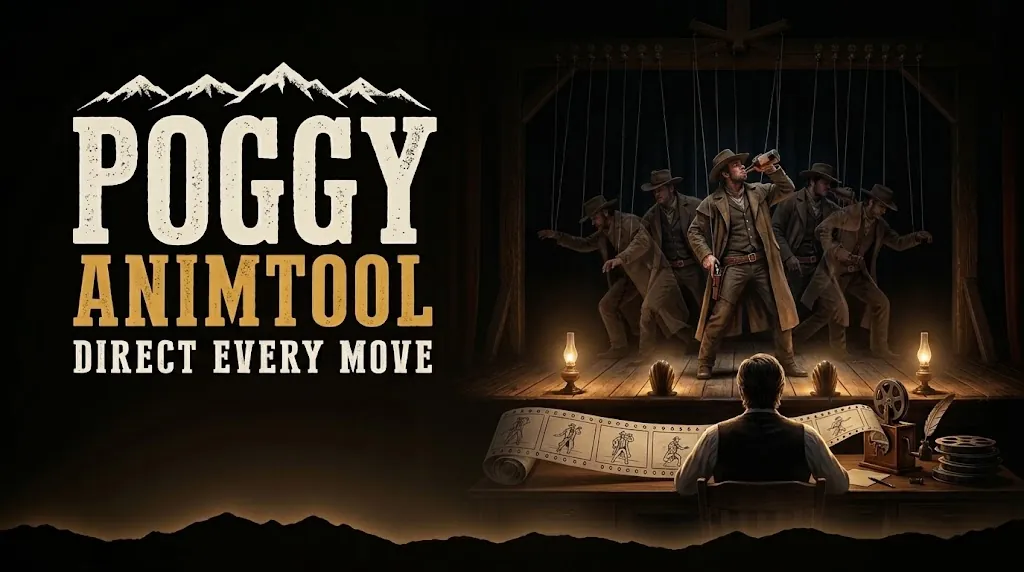
Poggy AnimTool ($29.99) is built for this. Staff open it with /animtool (it needs the command.animtool ACE), and work on their own character:
- Attach a prop to any of 59 bones, or to another prop, and set its scale.
- Pose it with sliders and watch it on your character as you go.
- Give each prop in and out times on its own lane of the timeline, so it appears and disappears on cue.
- Add keyframes for position and rotation, with linear, smooth, ease in, ease out or hold easing between them.
- Chain several animation clips on the same timeline, from a searchable library of 40,182 dictionaries.
- Export the scene as a Lua table and play it from your own script with the open runtime:
ScenePlayer.playOnce(PlayerPedId(), scene).
Players never need the tool. They only run the scene you export, inside your own resource. Projects are saved on each staff member's own PC, and project JSON moves one to a teammate.
Common mistakes with RedM props
- The empty hand. An object created with the networked argument of
CreateObjectset to false exists only for the player who made it. Others see the animation and no cup. The AnimTool runtime creates its props this way too, so test any scene others must see with a second player. - Props left behind. Delete the object when the animation stops, and in an
onResourceStophandler, so a restart does not leave cups floating in the street. With the runtime,destroy()stops the animation and deletes its props. - Waiting forever. A loop on
HasModelLoadedwith no timeout never ends if the model name is wrong. Keep the timeout. - Forgetting the model. Call
SetModelAsNoLongerNeededonce the object exists, so the game can free the model later.
What you need
- For the hand-written method: nothing but a client script. The natives above are part of RedM.
- For Poggy AnimTool ($29.99): the free Poggy Core (Free), on VORP Core, RSG Core or QBCore RedM. AnimTool calls no framework functions, needs no database tables and has no config file; access is the one ACE line, for example
add_ace group.admin command.animtool allow. - The exported scenes need only
scene_player.lua, loaded before your script in your resource'sfxmanifest.lua.
New to installing resources? How to install a RedM script covers the folder, server.cfg and start order. For turning a finished scene into something players trigger themselves, see how to add emotes to a RedM server, and for writing your own framework-free scripts, using Poggy Core in your own RedM scripts.